
Correspondence – Beta
The Correspondence section in Gold-Vision displays the all emails and notes items for quick visibility of communications for specific Gold-Vision records.
To use the new Correspondence section in Gold-Vision, visit Settings, UI Setting and check the ‘Show Beta Features’ checkbox and then go to the Screen Designer and add the Beta Correspondence section.
View Correspondence items
Access the Gold-Vision record and click on the page where the beta Correspondence section has been added:
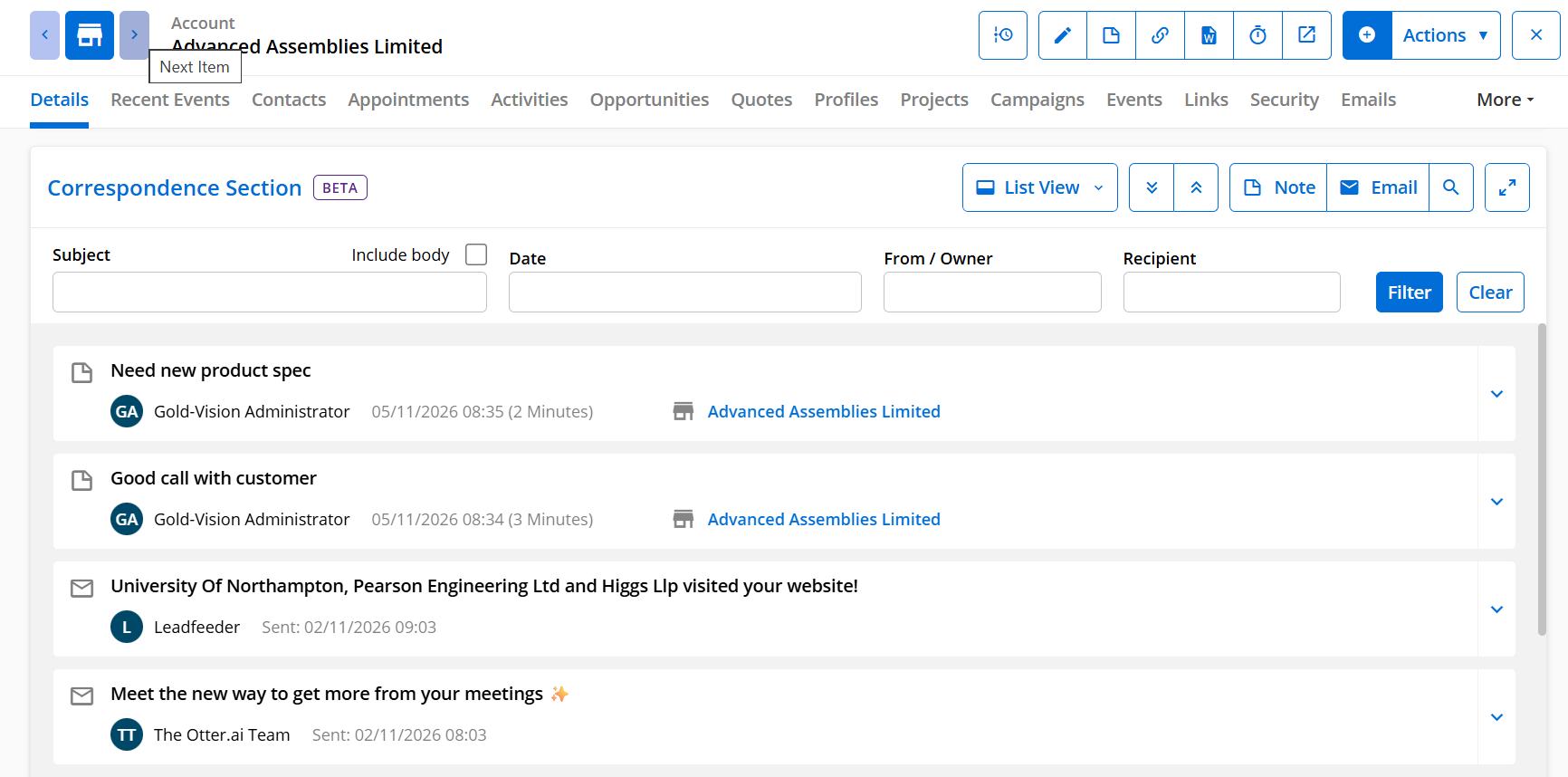
As before, all emails and notes are displayed in a list view and users can click on each item to view the details.
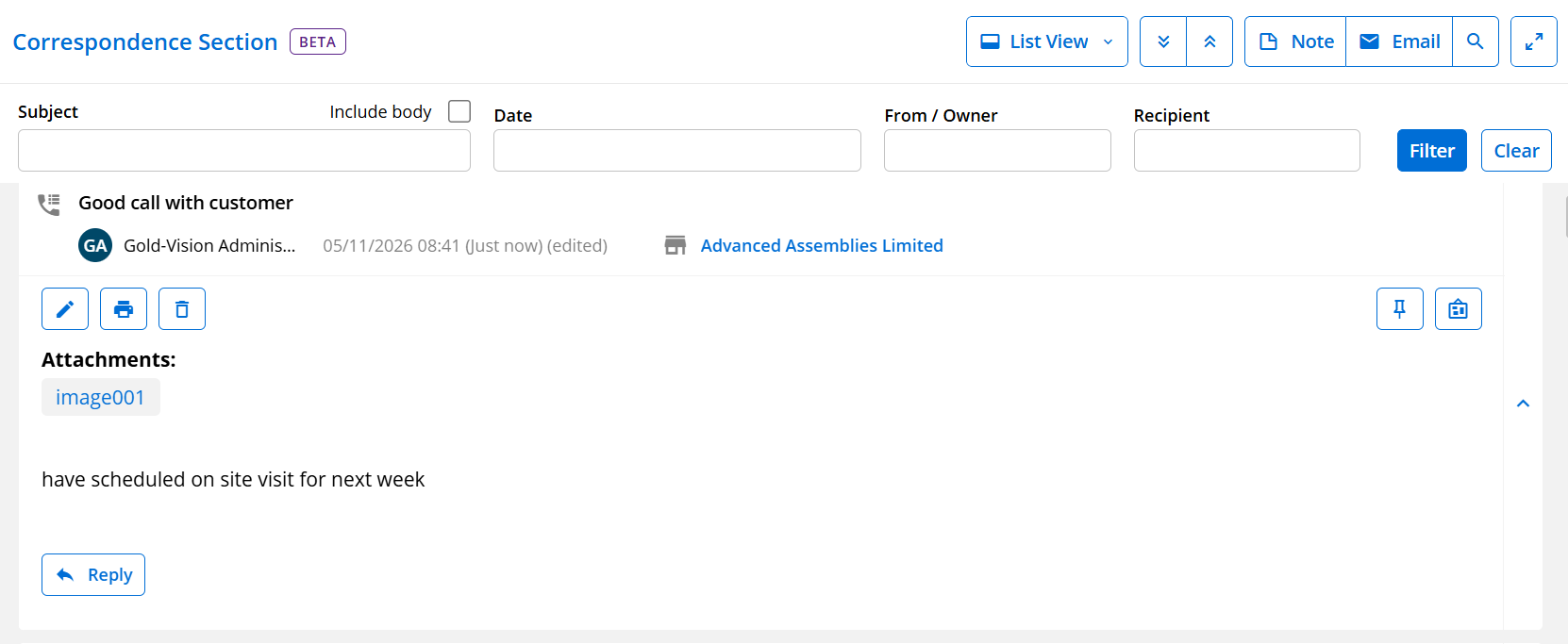
New options are now available to use a Column view for your emails and notes. Additionally you can use the expand icon in the top right corner to view a full screen version of Correspondence when you want to clearly view those longer communications.

 Tip
See Create and Using Notes – beta to find out about about improvements we have made to Notes
Filtering Correspondence items
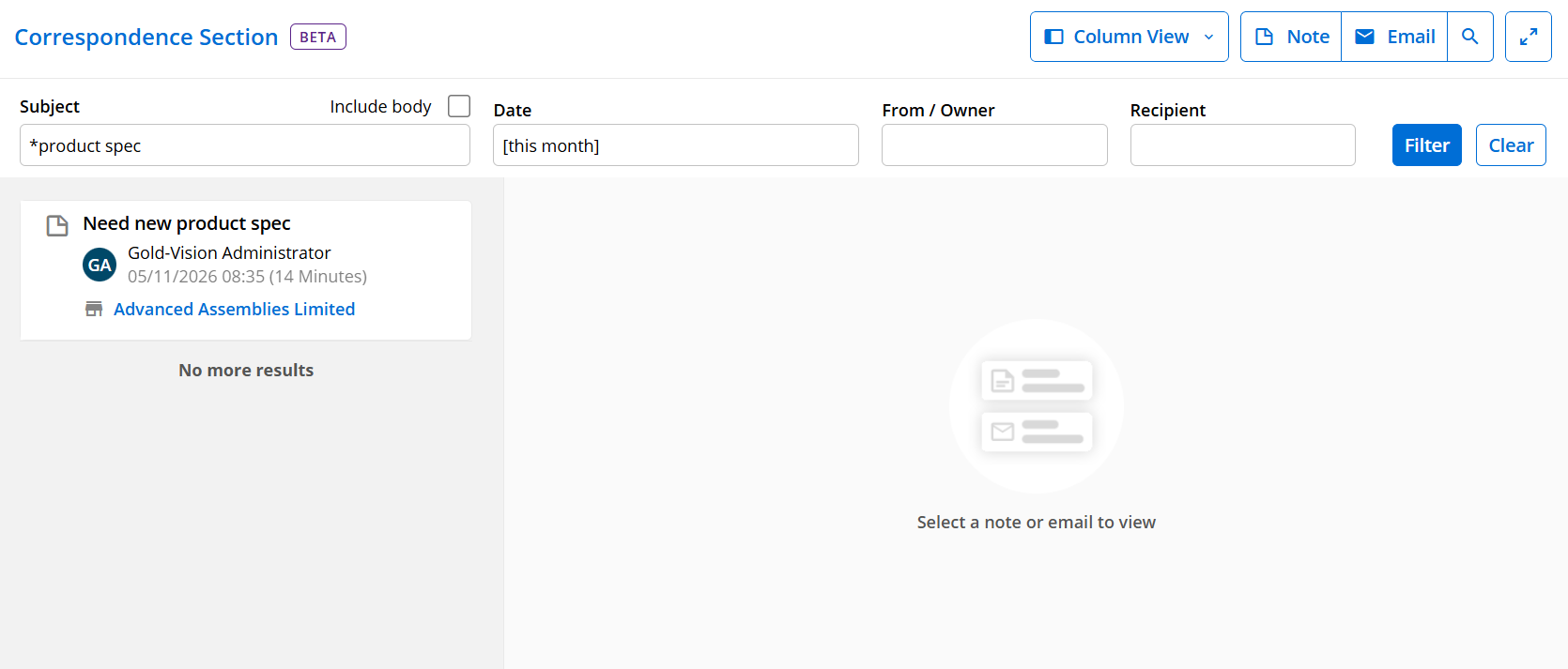
To quickly find specific notes or emails users can filter the correspondence list using the headers of the section.
Type in the Subject field any specific words or filter by date, from/ owner or recipient:
 Related articles