
Creating & Using Notes – Beta
Notes can be created against any item in Gold-Vision and can be used to write updates, record information, update colleagues and more.
Create a Note
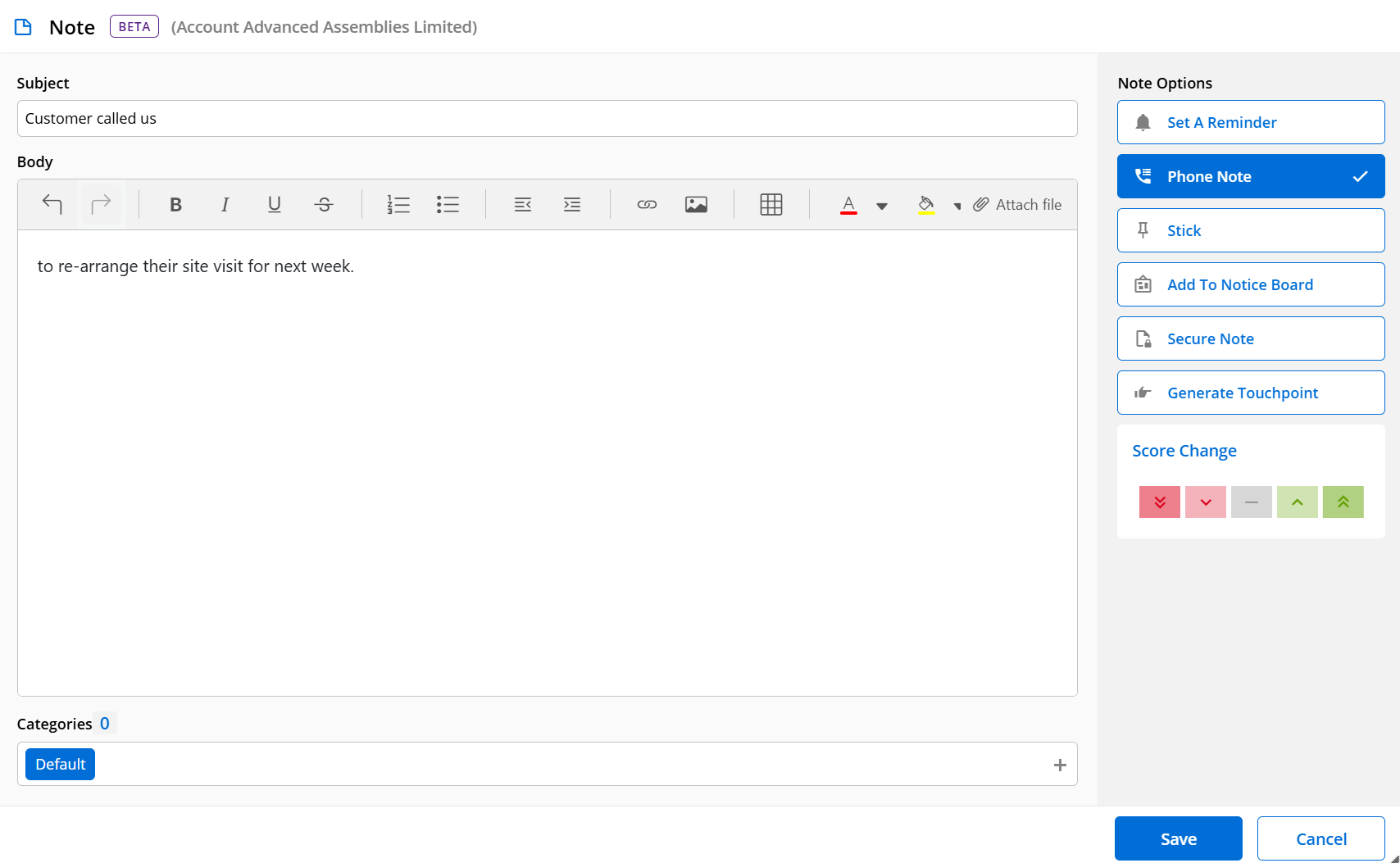

Note Options
- Set Reminder – select a date and time Gold-Vision should send you a reminder of this note.
- Phone Note – An icon of a phone will appear in the correspondence area to help differentiate between normal notes and phone notes.
- Stick – select this option if you would like the note to always appear at the top of the correspondence list. Sticky notes will appear in chronological order.
- Notice Board – tick this option if you wish to send the note to the notice board area. You can find this under the view menu and stores all notes in one area.
- Secure Note – Use this option to only allow a note to be visible to specific groups and users.
- Generate Touchpoint – Generate a touchpoint from this note update.
- Score Change – Rate the customer sentiment of the note.
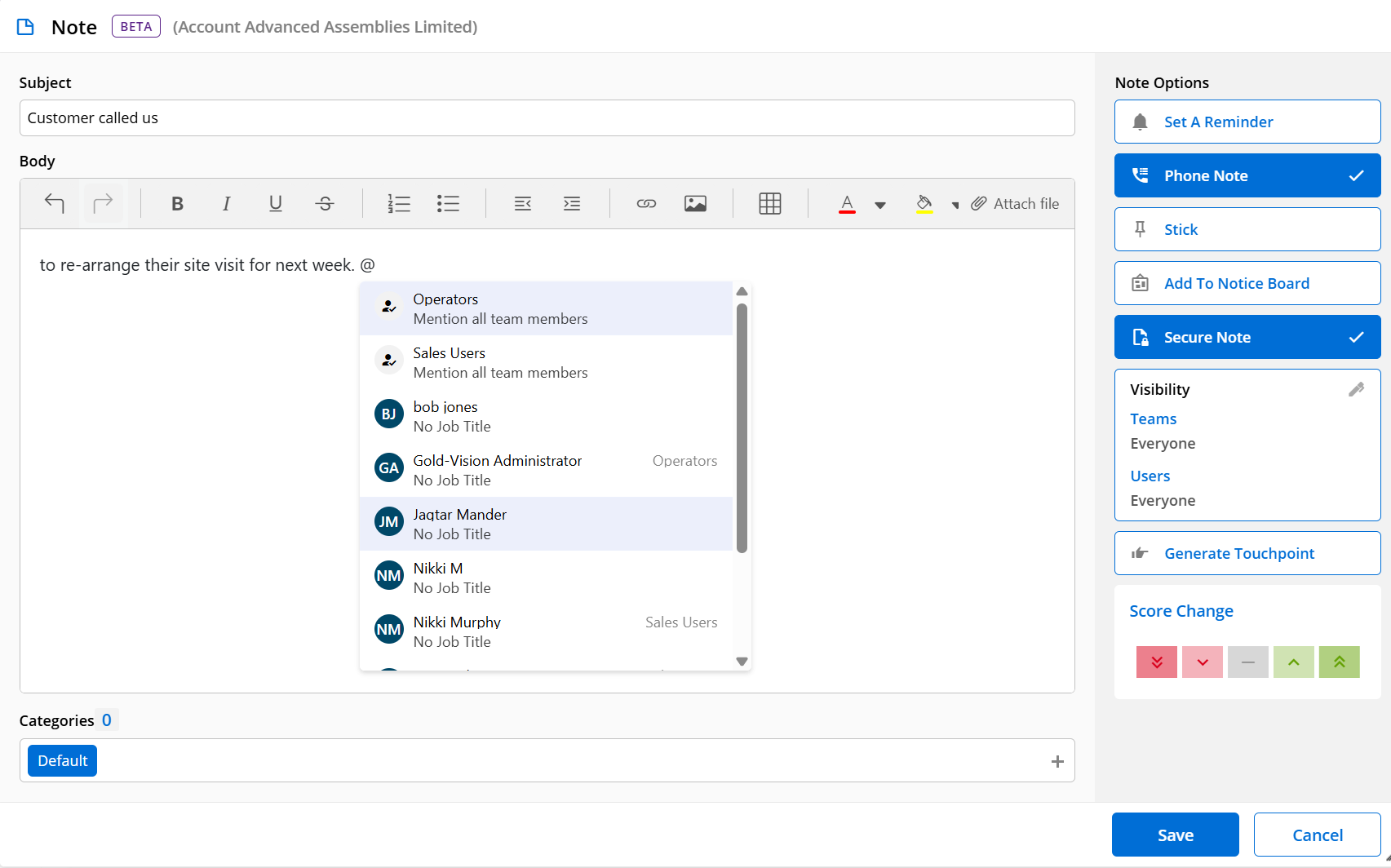
Notes can now be broadcast from the body of the note by using the @ symbol to locate a colleague or broadcast the note to the whole team
Attachment and Images in Notes
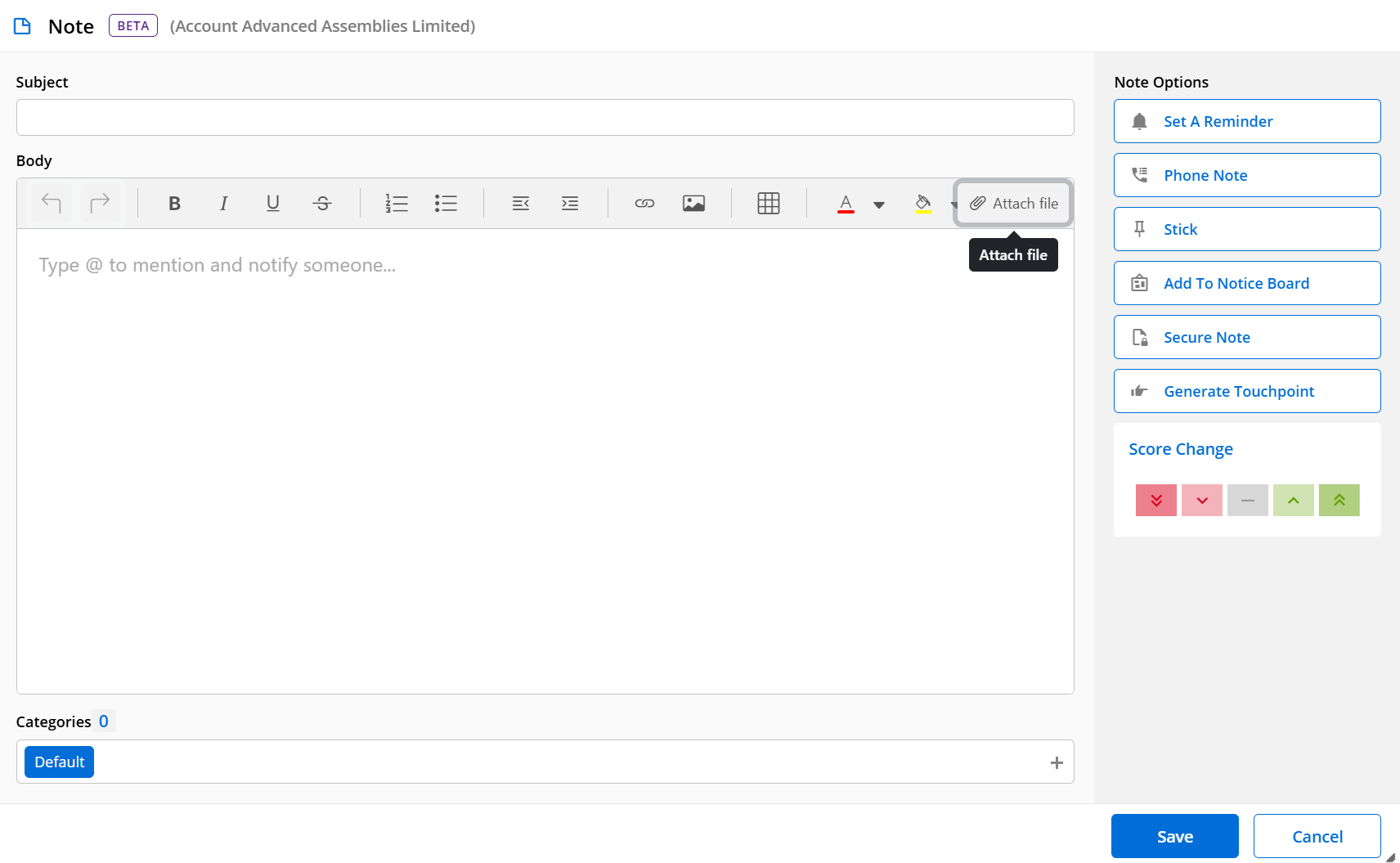
You can now upload attachments using the Attach file shown, or simply paste images into Notes. With a super extended note limit of up to 150k characters, notes make it easier than ever before to keep your most important information in Gold-Vision
Note Icons
This is a standard note icon, a note has been saved.
When a note has been made sticky, a pin icon will appear. The note will always be pinned to the top of the correspondence section until it is no longer sticky.

If you decide to make it a phone note, a phone icon will appear in the correspondence area.

You may want to add your note to a noticeboard, you can select the ‘Add to Noticeboard’ option when adding a note. You can access all notes on the noticeboard from the view menu.

Edit Notes
Editing options are set by your Gold-Vision Administrator utilizing one of the following methods:
1) Notes are set to be un-editable for audit trail purposes.
2) Full editing is available by the Note creator.
3) Editing can be made on the day of input by the Note creator to allow corrections such as spelling mistakes to be made whilst preserving main audit trail.