
Updated Document Storage Section
New and Improved Document Storage
We’ve made it easier to find and manage your documents in Gold-Vision. A refreshed document storage area now lets you search files by name or by tag, and you can tag documents as you upload them (or add tags later) to keep everything organised and easy to retrieve. It’s faster too, with speed improvements built in throughout.
Visit the screen designer and add a new section by clicking on the plus icon at the bottom right.
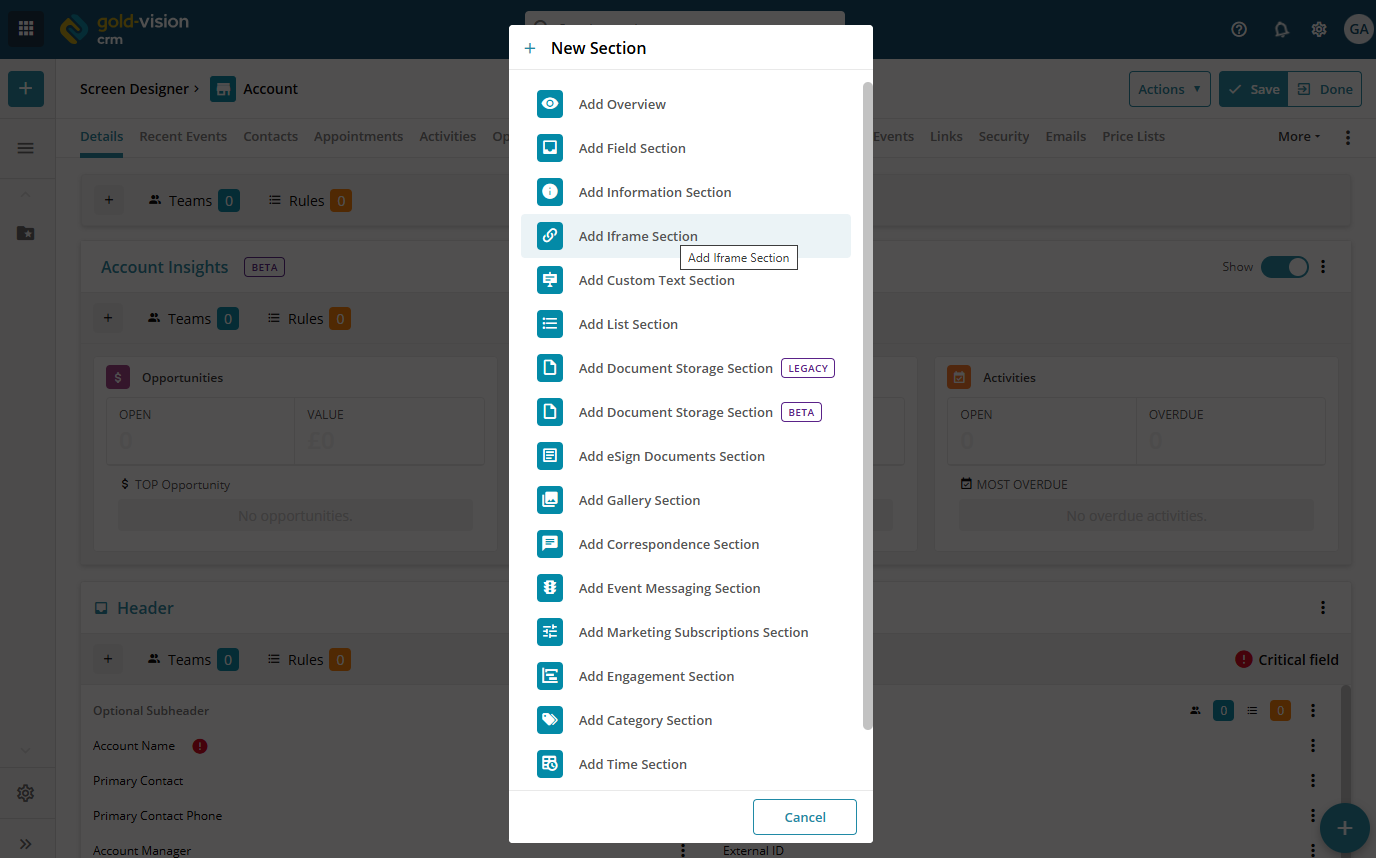
 Info
Info
If you can’t see the beta features in the screen designer then visit your UI Settings page and check ‘Show Beta Features’ and try again.
Upload Documents
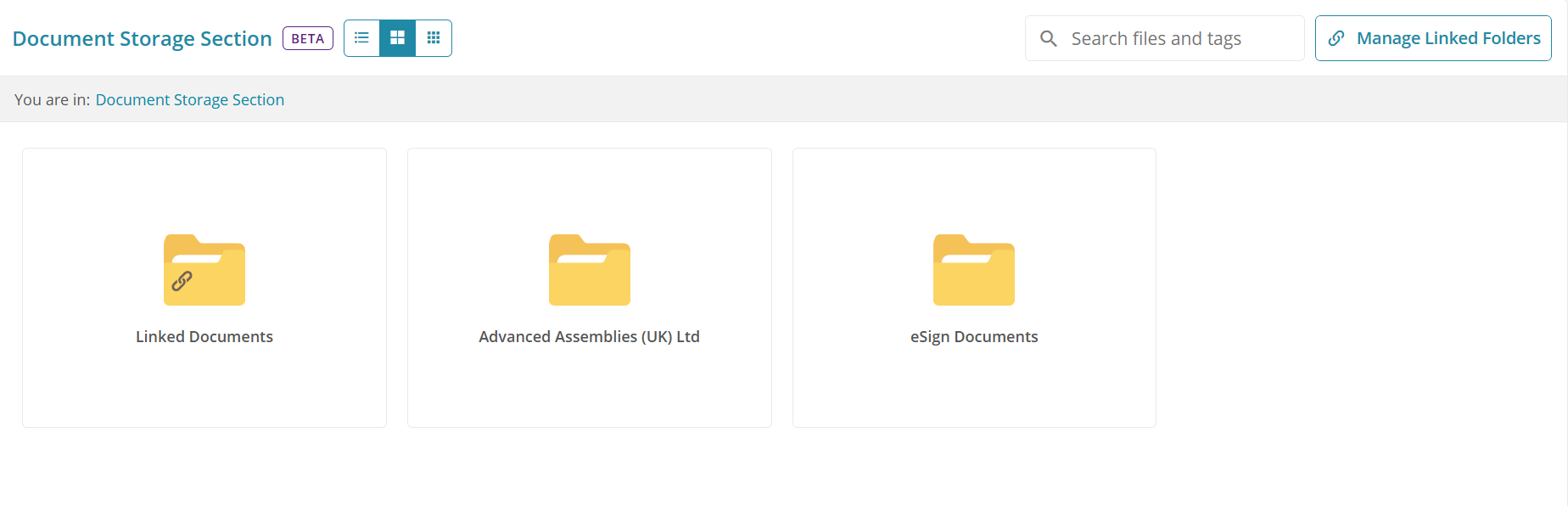
Users can upload documents against Gold-Vision records which can be viewed and downloaded by other users. The section allows for document display options for List, Grid or Small Grid View. You can also search for files or for document tags.
Go to the documents section and click on the folder you want to upload the file to:
Info
Document Tags can be created and maintained by your system admins in the new Document Tags page in Settings.
Info
Gold-Vision supports a maximum per-file upload limit of 50MB.
Once you are in the required folder click on the Upload file button Browse to the location where the file is saved and select the file you want to add, or Drag and Drop the file in the Gold-Vision folder:
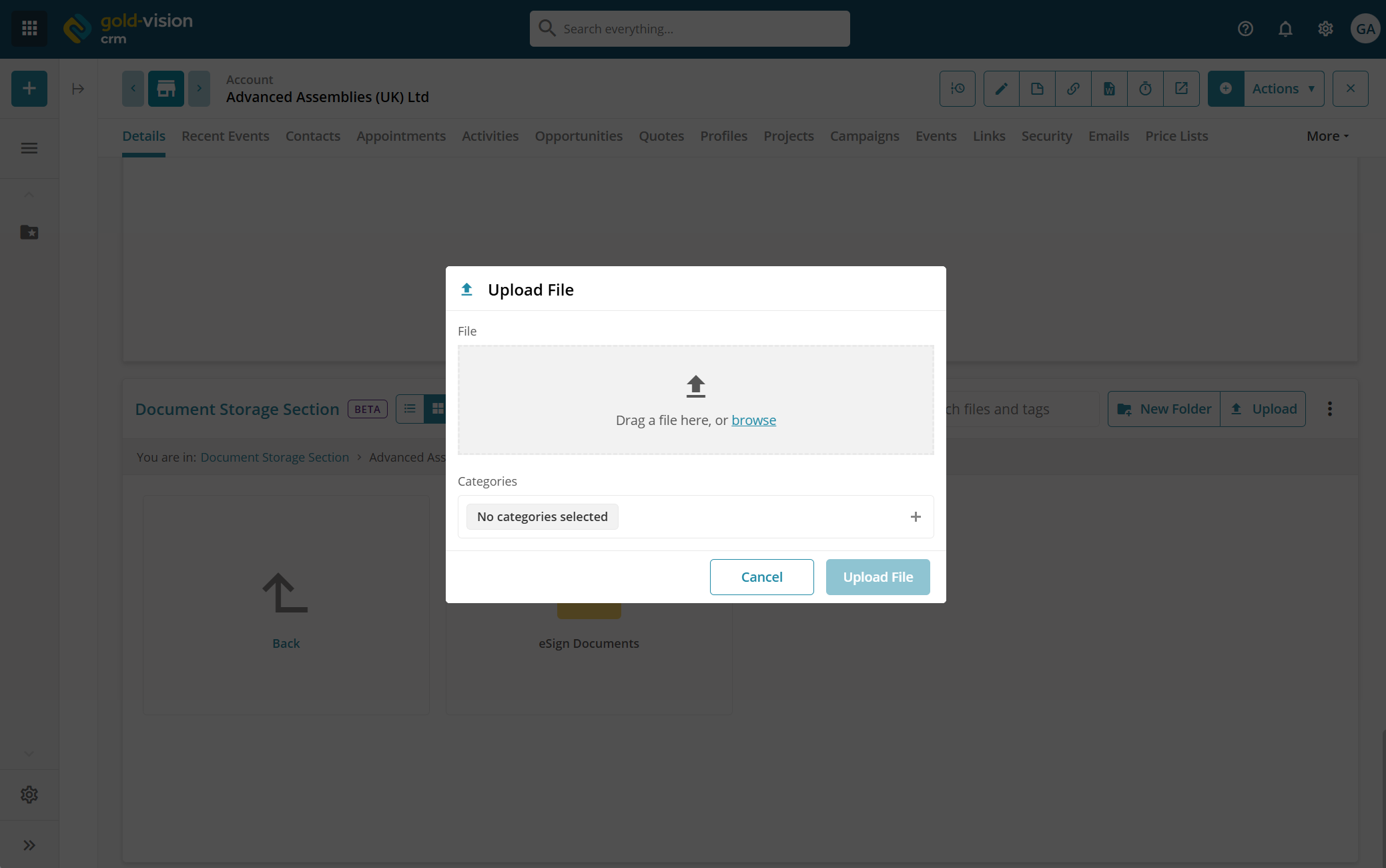
The file will then be available in Gold-Vision. Your existing document setup will be unaffected, whether you use the Gold-Vision document store or the SharePoint integration.
 Tip
Tip
Tip: users can also link new folders by selecting the New Folder option or delete the folder from Gold-Vision
 Related articles