
Using Dashboard Slicers
What is a Dashboard Slicer?
As a dashboard user, you’re used to adding and editing filters onto each widget individually. A dashboard slicer allows you to filter all of the widgets on your dashboard using one slicer – as long as the widgets are all based on the same data.
Perhaps you have a dashboard monitoring sales and want to quickly slice the data by sales person or account manager. Maybe you have a dashboard based on your 2025-2026 financial year and want to clone it for the 2026-2027 financial year.
Slicers are the perfect solution; no need to edit the filter on each widget, just edit the filter on the slicer. If you use more than one dataset (e.g. Opportunities and Sales) in your dashboard, it’s no problem – just use one slicer to cover the Opportunity widgets and another for the Sales widgets.
Using Dashboard Slicers
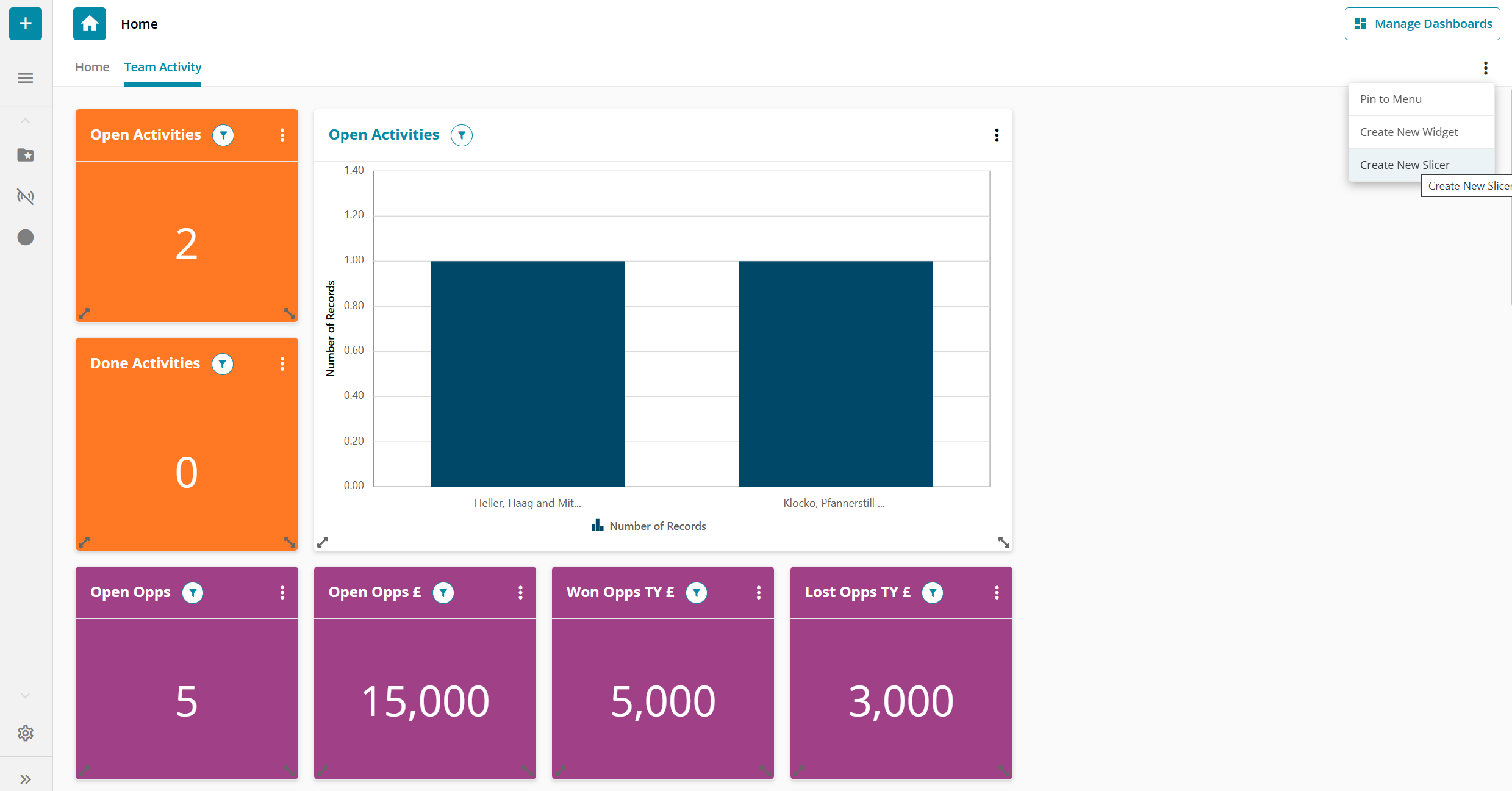
Go to any dashboard and click on the 3 dot menu at the top right hand side of dashboard and choose Create new slicer.
Give your slicer a name and choose which data source to use, so for example if your widgets are all based on Activities, select Activities.
Click on Add field to choose which field from your data source you want to use in your slicer – you can use more than one.
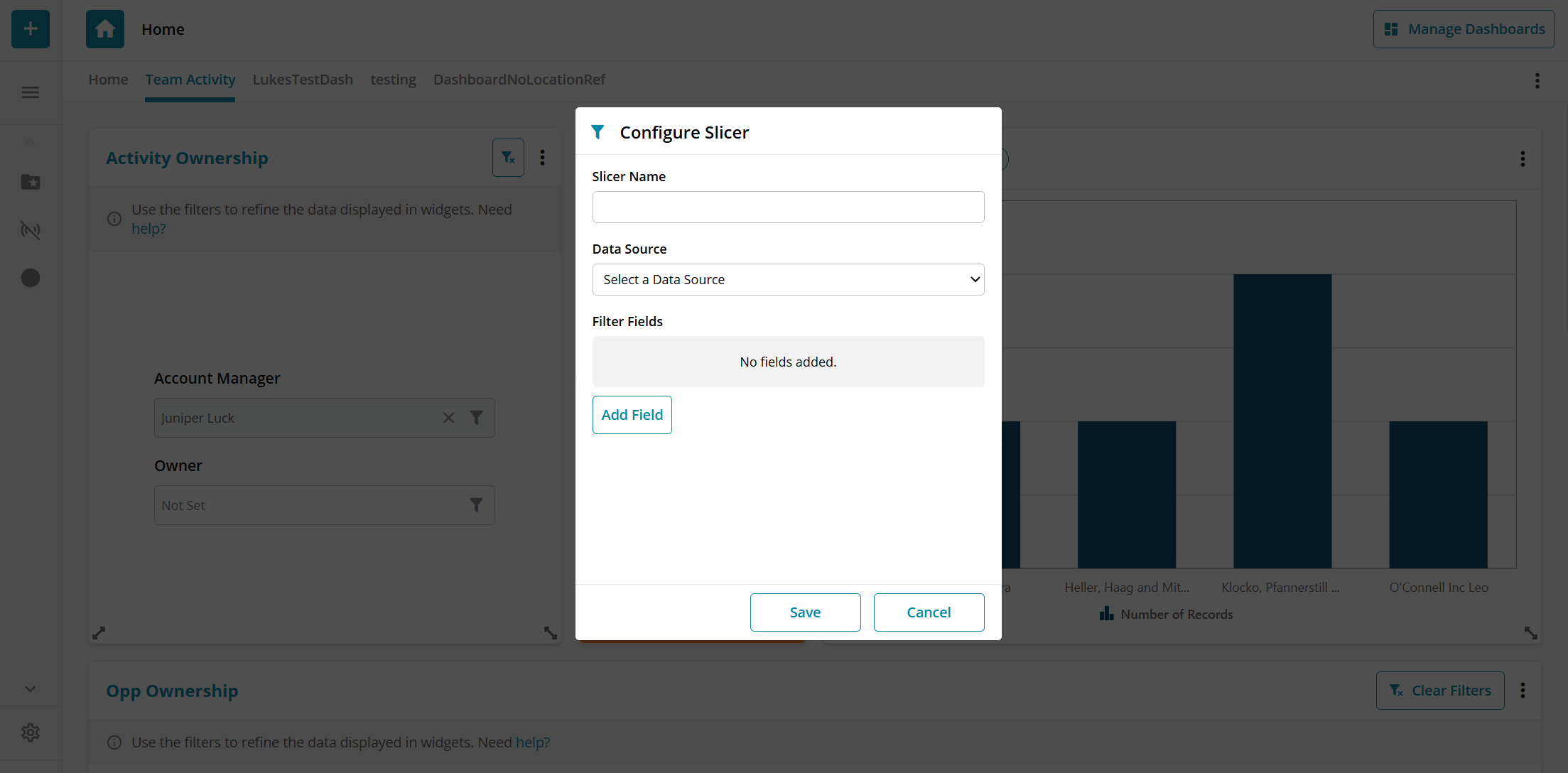
Press Save. Your slicer is now added at the top of your dashboard.
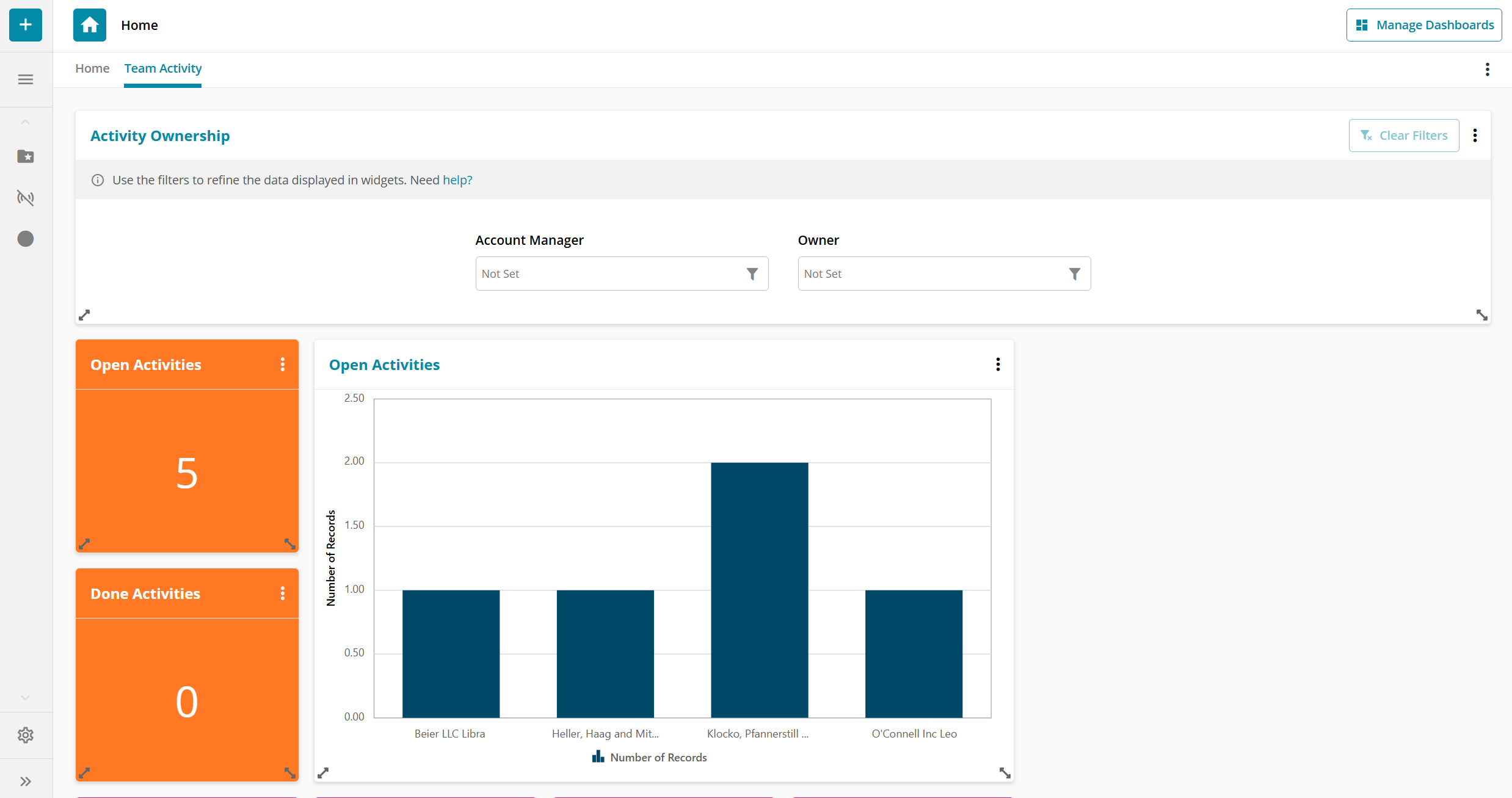
Your slicer can be resized and moved just like your widgets.
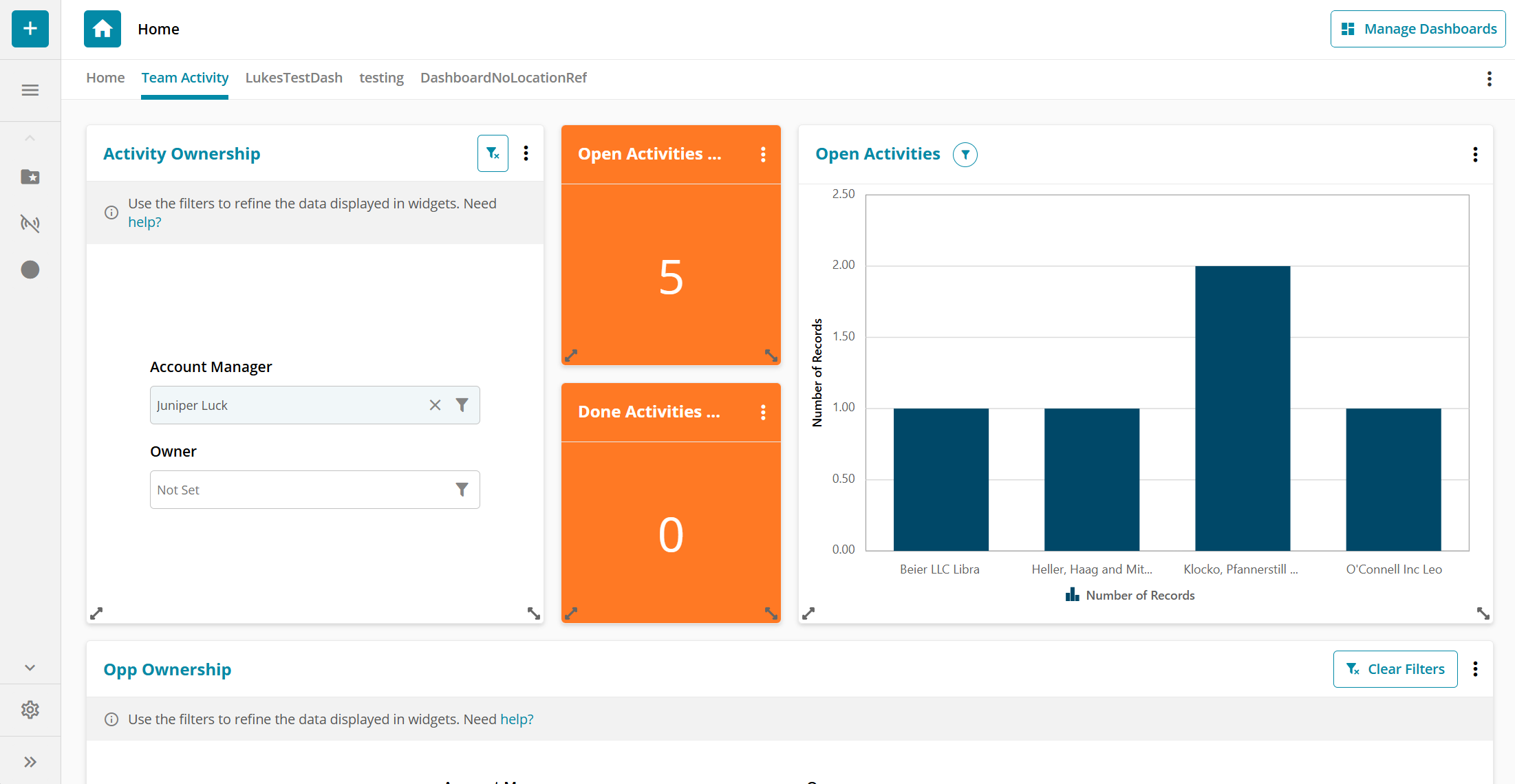
Click in the field in the slicer to apply your filter and notice that your widgets are now filtered by the field as chosen in the slicer.
Widgets affected by the slicer show a slicer filter icon in the title bar of the widget.
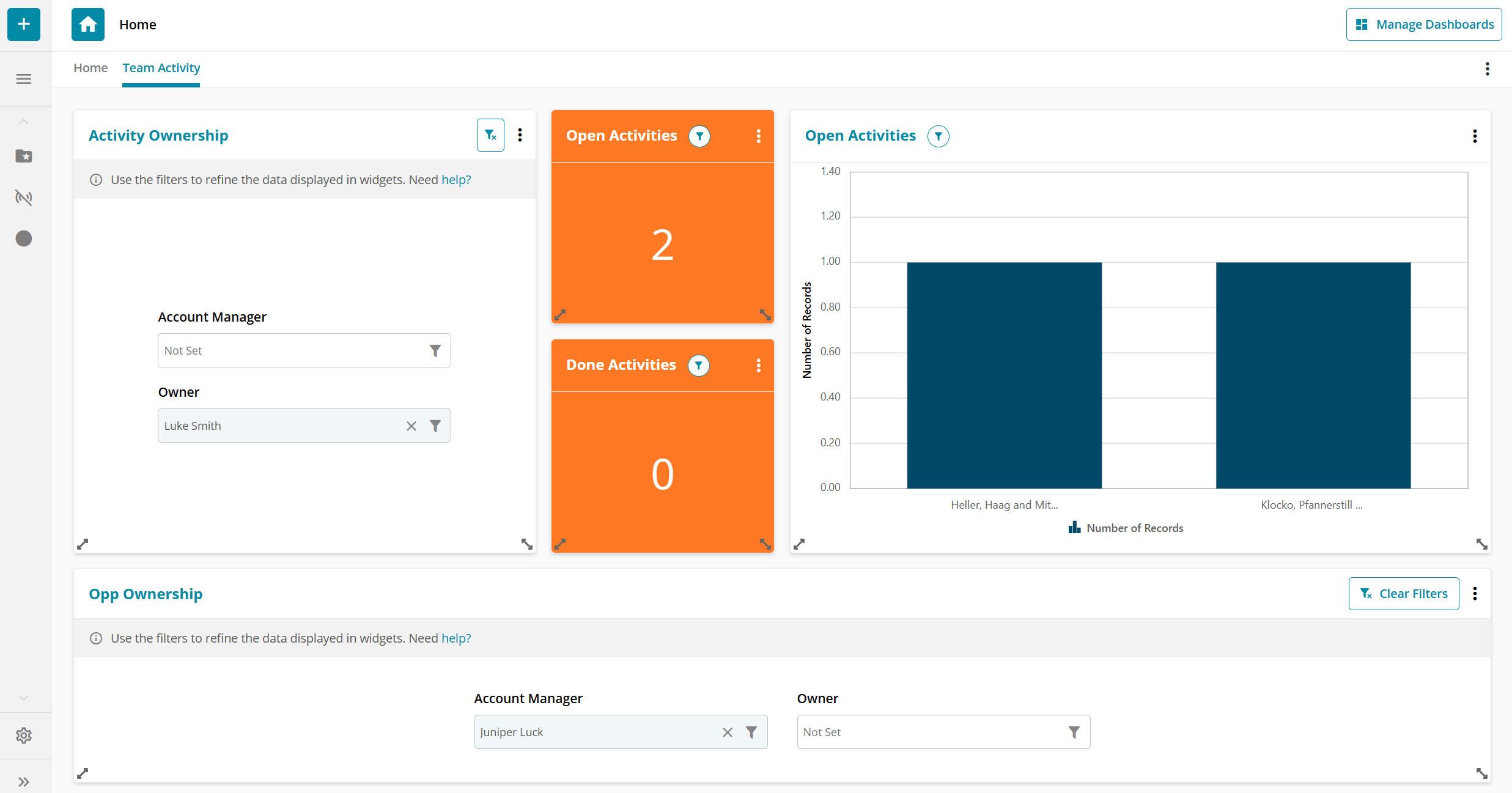
You can clear or change the filter applied by the widget and see the changes reflected immediately.
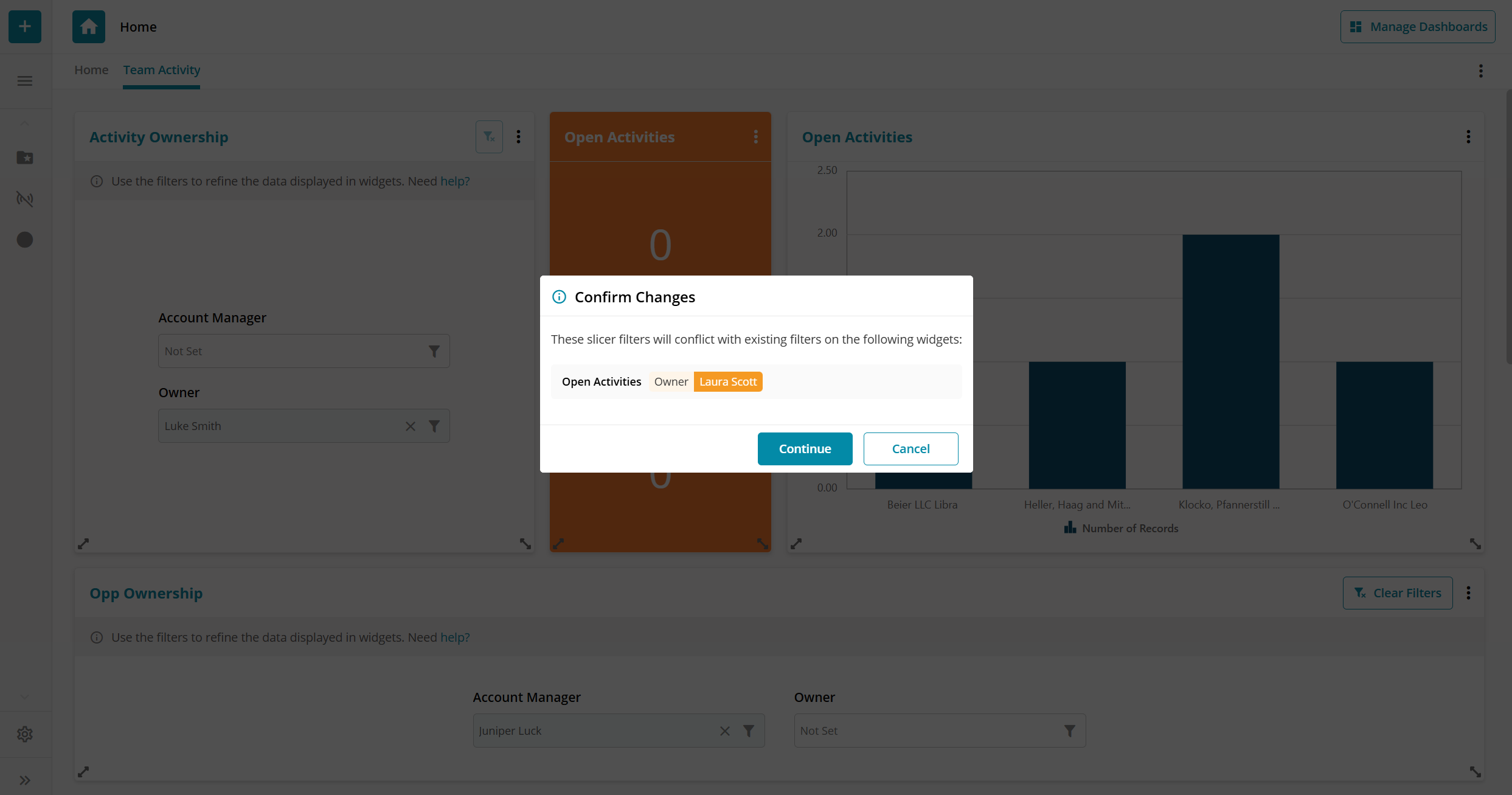
If you apply a filter to a field that is already used as a filter within a widget you will see the following screen; clicking confirm will remove the original filter within the widget and replace it with the filter from the slicer.
Multiple Dashboard Slicers
If you have other widgets in your dashboard using other data sources (say Quotes, or Activities) then simply add another slicer to your dashboard. You can add up to 3 slicers.
Dashboard Slicer Feedback
Let us know what you think of the dashboard slicer!
 Related articles