
User Configuration – On Premise
Licence Settings
 Info
Info
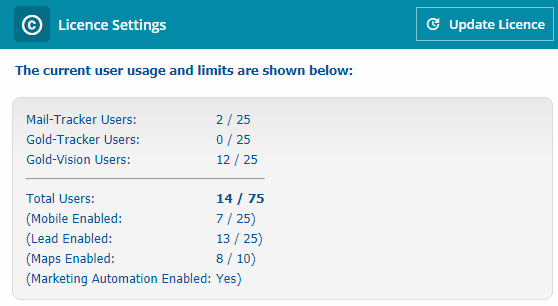
Before setting up a new user you will need to check that you have enough licences, or you can free up a licence by disabling a user.
You can view the number of licenses by selecting Settings, Licence Settings.
Setting up a New User (On Premise)
If your Gold-Vision is installed on your own server first check, you have a spare licence or disable a user to free up a licence.
New users can be set up within the Users area.
Configuring User Level
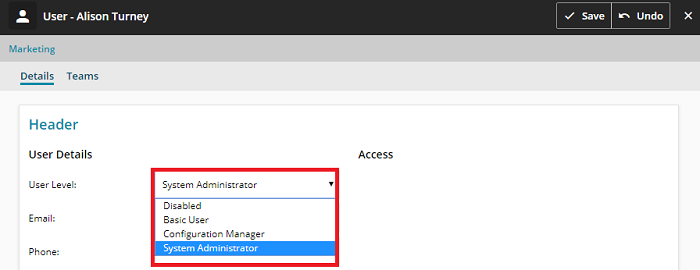
You can amend a users user level in Users within the Settings area.

You can then create the new user, the following key fields are required:-.
- Core info – First name, last name, email address, NT Account, team and user level.
- User Level
- Disabled – No access to Gold-Vision, but this may be useful for including colleagues who are not users but you may wish to shows as owners of items.
- Basic User – A normal user with access to Gold-Vision, but without access to the Administration Console. Visibility of items is controlled by the User Access Options screen, see section below.
- Configuration Manager – This provides access to the configuration options in the Admin Console, but still limits your view of data to your own team access rights.
- System Administrator – Full administration rights – can see all data, irrespective of any security that may be active on it, and change the rights for all users.
 Tip
Tip
Tip: See ‘User Mail Tracking Setup‘ and ‘Calendar Synchronisation‘ for how to set these up for new users.
Configuring User Access
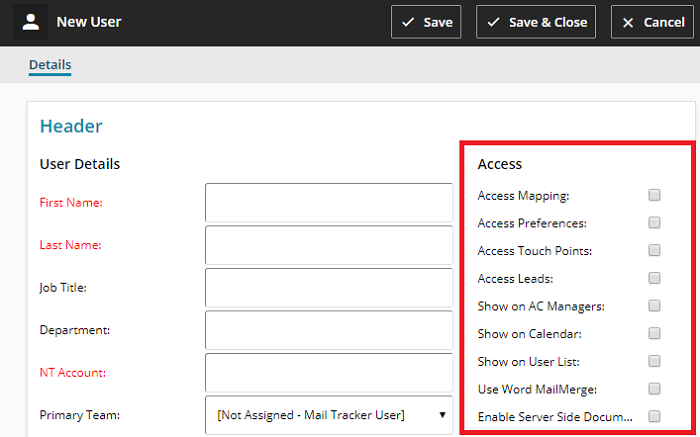
There are a selection of check boxes, giving users access to certain areas such as Lead Management and Touch Points.
If you need the users to be available on lists, such as Account Manager, or to invite to an appointment, they will need to have the relevant ‘show on’ box ticked.
Tip
Tip: Before deleting a user, we recommend initially setting them as a disabled user. This will stop them accessing Gold-Vision but allows any items owned to be transferred to other users – using Bulk Replace. Remember to un-tick the ‘show on’ lists if you no longer want items allocated to the disabled user.
 Related articles