
Single Sign On
What is Single Sign On?
Gold-Vision 8 makes use of a more secure Single Sign-On (SSO) system, giving you flexible, modern ways to sign in — including passkeys, which let you sign in with your device (Windows Hello, Touch ID, or a security key) instead of typing a password.
Gold-Vision SSO includes Two-Factor Authentication and passkey sign-in, providing the following benefits:
- Improves the user experience — sign in faster, with fewer passwords to remember
- Provides enhanced security — passkeys and two-factor authentication are significantly harder to compromise than a password alone
- Improves password management — reduces reliance on passwords day-to-day, without removing them as an option
- Assists with regulatory compliance — supports stronger authentication requirements
How to register for Single Sign On
To prepare for this, users need do the following

- Go to https://uk.gold-vision.me/
- Click the Register button
- Register using your main email address (the one you have recorded against your Gold-Vision user) and choose a password that satisfies our password security rules.
- Check your email and click on the link to verify your email.
- Once registered, you can also set up two factor authentication or a passkey, which can be done from the options after log in.
Once complete you will be activated and can use these credentials to log in to Gold-Vision.
 Info
Info
Your password needs to include
- At least 12 characters
- 1 upper case letter
- 1 lower case letter
- 1 number
- 1 special character
Signing in with a Passkey
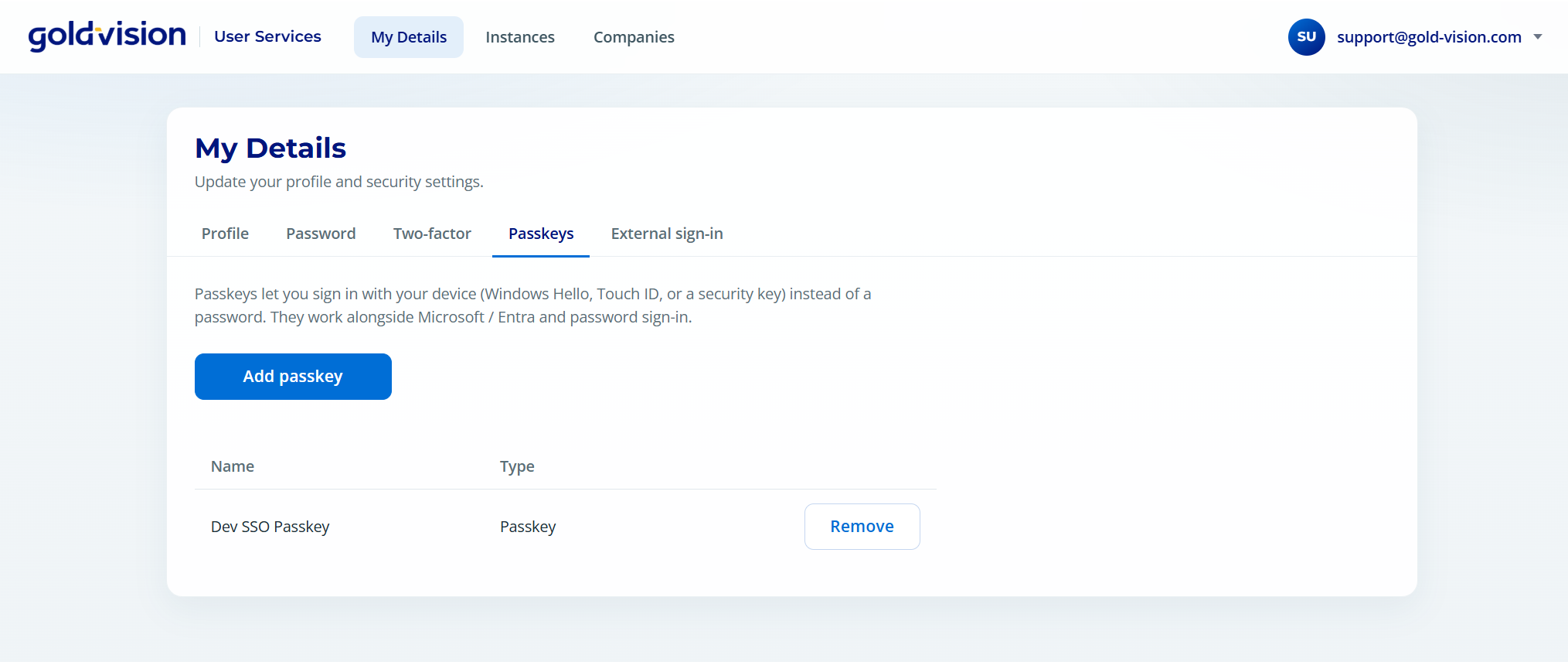
Alongside your email and password, you can now sign in using a passkey — a faster, more secure way to log in using your device’s own security features, such as Windows Hello, Touch ID, or a physical security key. Passkeys work alongside your existing password and two-factor authentication.
Once you are logged into SSO you can add and remove passkeys within your account at https://uk.gold-vision.me.
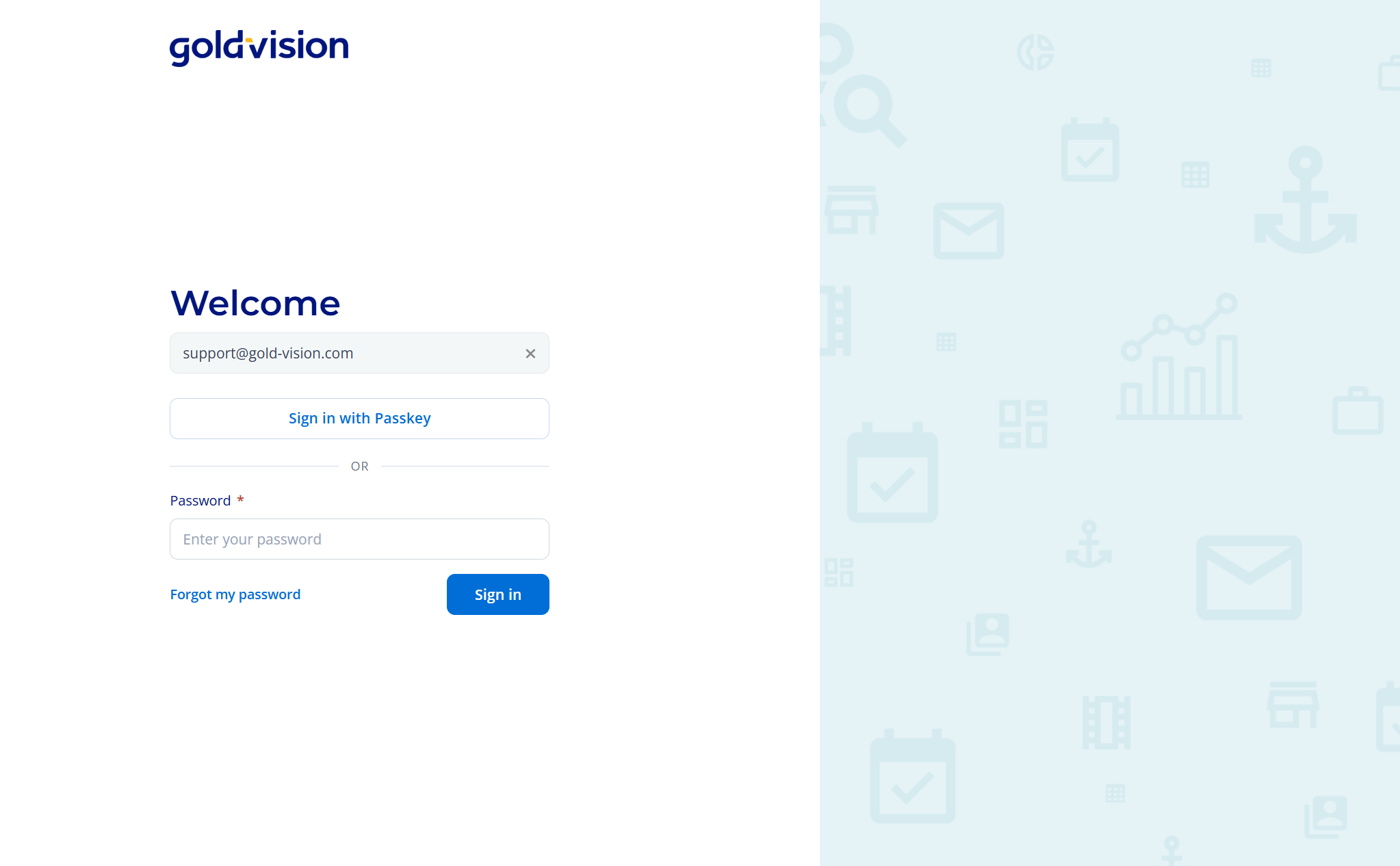
When you next login you will then see the Sign in with Passkey option, allowing you to use your Windows Hello, Touch ID, or a physical security key.
Managing your Account
Profile – update your email/phone number
Password – change your password
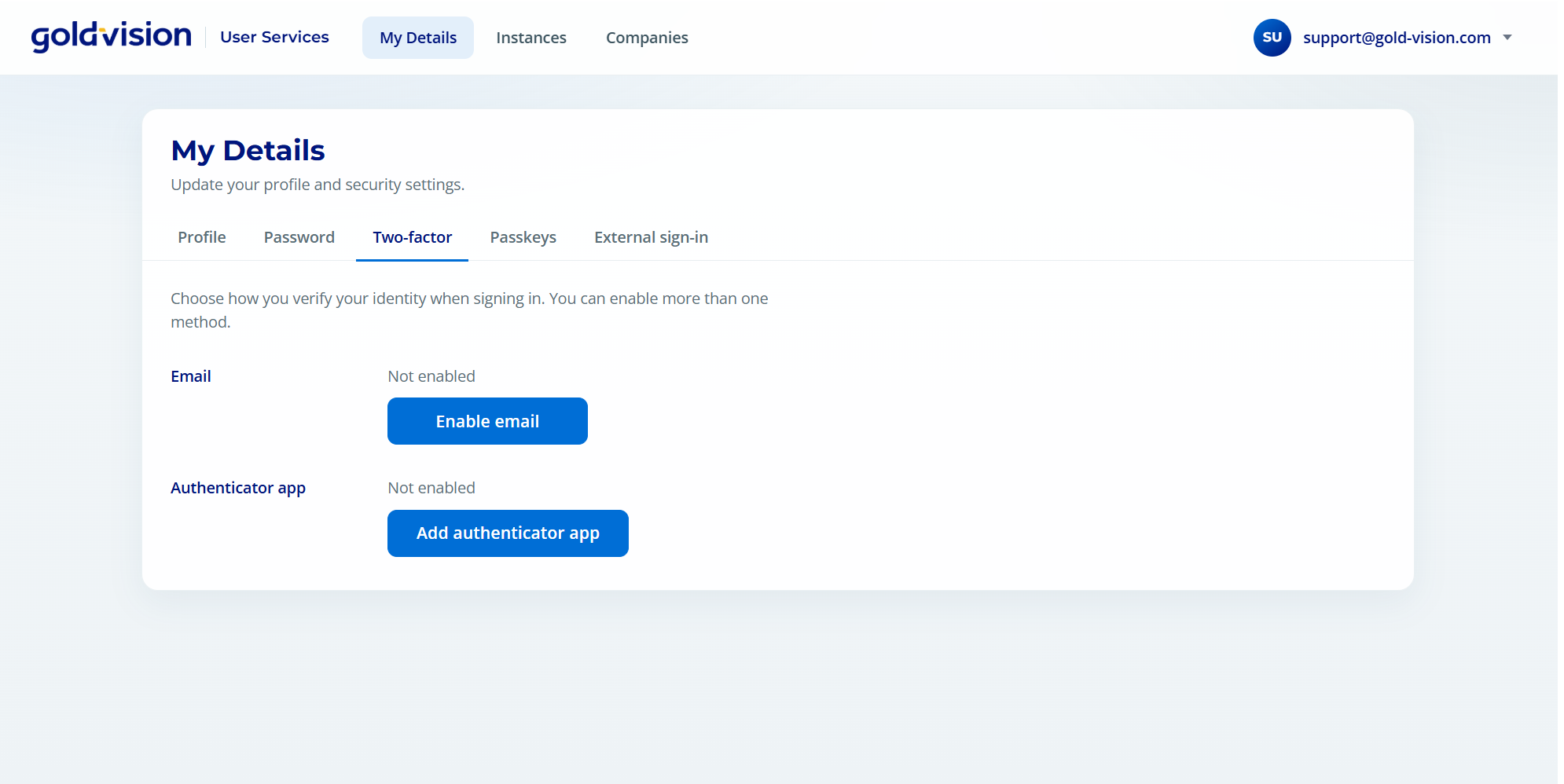
Two Factor Authentication – Enable Email Authentication
Passkeys – Create and delete Passkeys
Authenticator App – Users can add an app for e.g. Microsoft Authenticator for IOS/Windows/Android or Google Authenticator for Android and IOS.
Two Factor Authentication
For enhanced security two-factor authentication can be enabled for email or app-based use.
You will require a smartphone authenticator app such as the Google Authenticator or a valid email address.
Once enabled you will be promoted to either enter a code from your app or via email in order to complete your authentication.
Enable Via App
Visit https://uk.gold-vision.me
- Log in
- Click My Details
- Click Two Factor Auth
- Click Enabled App
- Scan the bar code using your phone app
- Enter the confirmation code from your app
- Click Verify
Enable Via Email
Visit https://uk.gold-vision.me
- Log in
- Click My Details
- Click Two Factor Auth
- Click Enable Email
- Screen will confirm email auth successfully added
Reset your password
Visit https://uk.gold-vision.me in an incognito window
- Enter registered email
- Next
- Click Forgot my password
- Enter email
- Next
- Password reset will be issued to your email
- Follow steps in the email
 Related articles